
What you need:
- For the USB export: a USB stick and access to the tractor display
- For the Operations Center export: a login for myjohndeere.com with access to your organization's fields
Option 1: Export to a USB stick
Use this when you are at the tractor and want to export one field directly from the display.
- Insert the USB stick into the USB port on the display.
- Tap Export Data in the pop-up window that appears. You can also go to System > File Manager > Export.
- Select Custom Export.
- Under Export Location, select USB drive.
- Under Client/Farm/Field Method, tap Field.
- Select the field you want to export.
- Select Work Data to export runs with the blue coverage marking. To also export the guidance lines saved on the tractor, select Setup Data as well.
- Tap Export.
- Wait for the message that says the transfer is complete, then remove the USB stick.
Option 2: Export from John Deere Operations Center
Use this when the tractor sends data to the cloud and you want to export from your computer. The export shows the blue coverage marking from a run, as a Shapefile.
Open Field Analyzer
Log in at myjohndeere.com and go to Analyze > Field Analyzer.
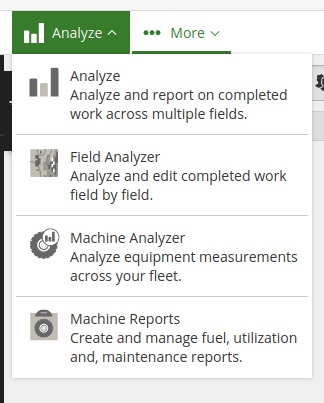
The Analyze menu, with Field Analyzer.
Show the equipment layer
Select the field you want data from. Then choose Equipment in the layer drop-down menu in the upper left corner of the map.
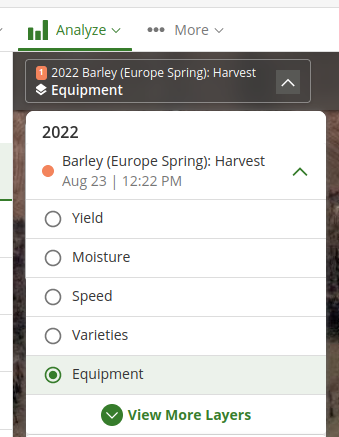
The layer menu with Equipment selected.
The map now shows where the implement on the tractor has been active.
Tip: Leave out driving in the headlands if you can. It adds noise to the data without being useful.
Export the work data
- Click Share/Export in the map toolbar.
- Open the Export Work Data tab.
- Keep Export to my organization's Files selected, and check that the right field and run are listed under Work Data Included.
- Click Export Work Data.

The Share/Export button in the map toolbar.
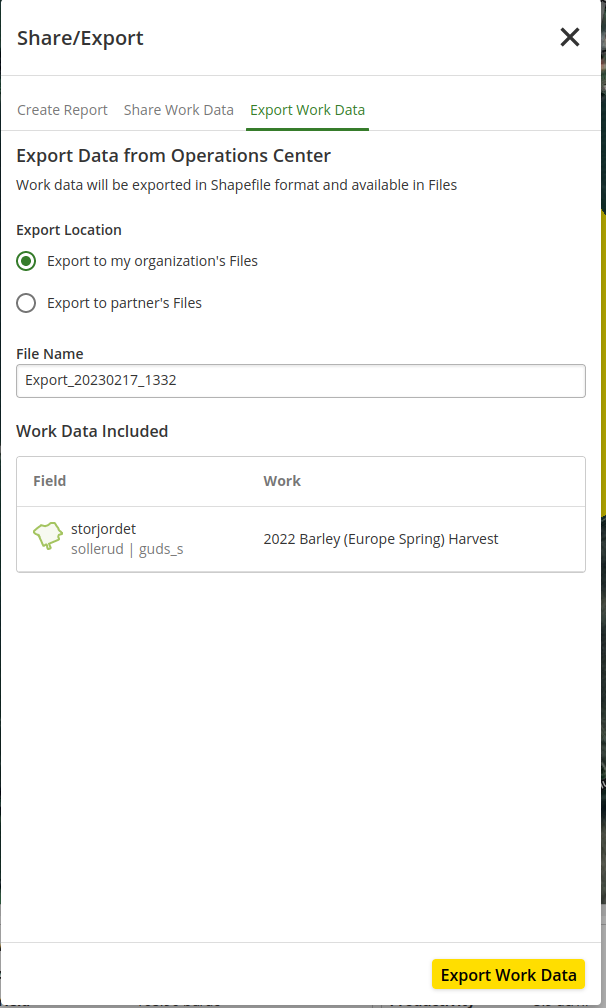
The Export Work Data tab. Work data is exported in Shapefile format.
Download the files
After a few minutes, the export is ready. Download it from More > Files.