Introducing Fields
We are now introducing Fields as a part of Kilter Farm. Fields will replace the previous Tasks system for keeping track of the areas where you want to use AX-1. We recommend creating one Field for each agricultural field you plan to operate on with your AX-1.
Creating a Field
To create a new Field, click the “New Field” button on the Fields overview page. Give it a name and, optionally, upload a boundary file (e.g. shapefile) to define the exact outline of the area on the map. 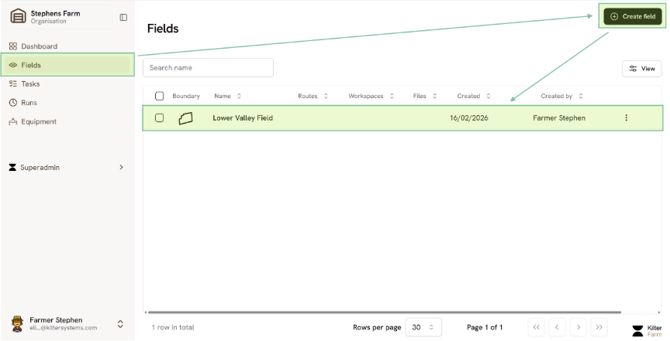
The Field Detail Page
When you click on a Field to open it, you will see three tabs that organize all of the information related to that area:
- Routes —created from a Field Planner workspace or uploaded directly.
- Workspaces —Saved progress when working with the Field Planner to create a route so you can go back to it anytime
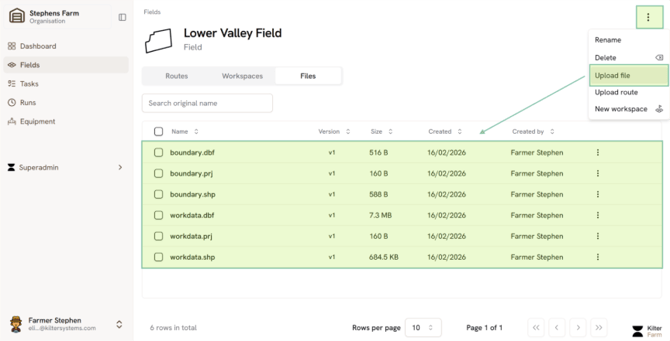
- Files — Any files related to this Field, such as work data, boundary, headlands, or any other GPS data files you find useful to make your route.
Upload Files
Upload files by clicking Upload files. Zip files are supported (especially recommended for shapefiles that would need a .shp, .prj and .dbf file to work). KML and geojson are also supported.
Create a Workspace
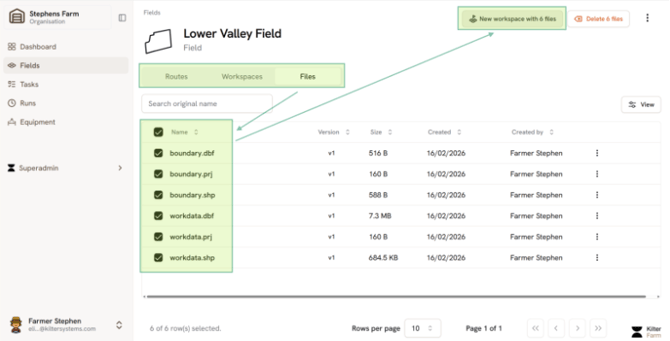
To create a new workspace, you can select the relevant files and click ‘New workspace with X files”. This will open Field Planner in a new workspace with your selected files. Create a route as described in <link to page with Field Planner info>.
Route Validation
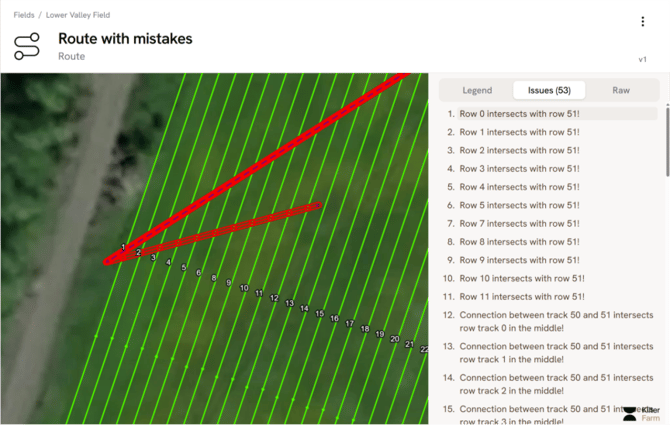
Going to “Routes” under the field detail page and opening a route now automatically checks it for potential issues. Click on any highlighted errors to focus on the affected area and see a short description of the issue on the sidebar