
The AX-1 is controlled exclusively through the Kilter Remote app on a mobile device or tablet, which acts as the machine's control unit. Through the app, you can control the AX-1, monitor operations, manage driving routes, and configure spray settings. The Kilter Remote app is required to operate the machine — there is no built-in control panel or alternative control method.
ConnectionThe AX-1 has an integrated local Wi-Fi network available for connection when the machine's main power switch is turned on.
Note: In some cases, it may take up to 2 minutes after turning on the main power switch before the AX-1 becomes available for connection.
To use the application, you need a mobile device or tablet with Kilter Remote installed. The app can be downloaded from the App Store (for Apple users) or Google Play (for Android users). See the QR codes below for download links. Wi-Fi must be enabled on your device during the connection process.
-
Account Creation:
When you purchase the AX-1, a user account is automatically created and the login credentials are sent to your email address. To add more user accounts, contact your Kilter customer representative. Use those credentials to log in to Kilter Remote.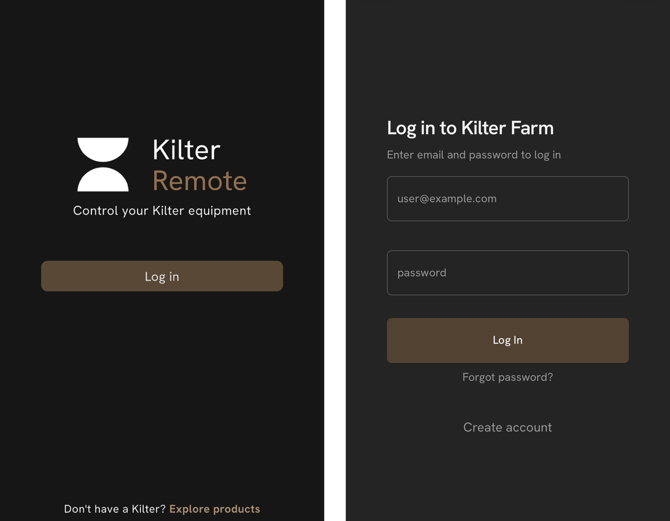
-
Connect your device to the AX-1's Wi-Fi network:
Open your device's Wi-Fi settings and select the AX-1's local Wi-Fi network from the list of available networks. Return to the Kilter Remote app once your device is connected. -
Connect in Kilter Remote:
After logging in, you will see a list of machines linked to your account. Select your AX-1, then tap Connect.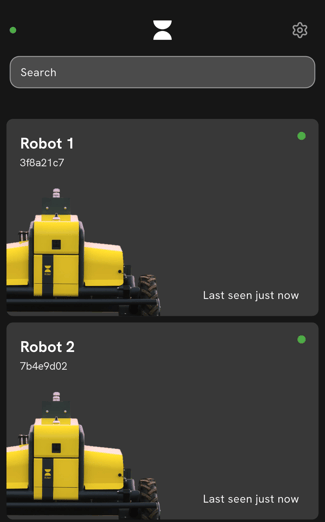
Having trouble? See common questions about Connectivity and Routes in our FAQ.