![kilterlogo big_big.png]](https://learn.kiltersystems.com/hs-fs/hubfs/kilterlogo%20big_big.png?height=40&name=kilterlogo%20big_big.png)
The table and picture below gives a brief explanation of the different objects that can be found on the map.
| Map Object | Type | Explanation |
|---|---|---|
| 1 | Waypoint | A point on the map the robot will visit. Green indicates the start of a segment, black indicates the end of a segment. |
| 2 | Waypoint | The current selected waypoint is shown as a larger orange circle. This is where the robot is headed next. |
| 3 | Segment | Two or more waypoints make up a segment. Segments are lines that the robot will follow in the direction indicated by the arrows. Blue lines indicate that the robot will not spray in this segment. |
| 4 | Segment | Green lines indicates that the robot will spray any weeds found in this segment. The current segment the robot is following is shown as a thicker line. |
| 5 | Segment | Red lines are headland segments used to adjust the green or blue route segments. |
| 6 | Robot | The current location and heading of the robot. The red circle indicates the center of the robot's position. |

Create a Route
- Navigate to the
Route Editortab. - Create a new route by pressing
 in the
 Route Editor. - Check that the GPS Status says
"Status: 4 Fixed RTK", which should be shown at the top of the map. If not, try moving the robot to a more open area. - Create a new segment with the
(+)button in theSegmentsarea. The first waypoint of the segment will be the current position of the robot. - Move the robot through the row and add waypoints as needed by pressing the
(+)button under theWaypointsarea. - When a segment is complete, repeat steps 4 and 5 to create multiple segments.
- The different segments should NOT be connected by waypoints. The robot will turn and move to the next segment automatically when exiting a segment. See the image below.
- Mark the segments to be sprayed by pressing
 .
.
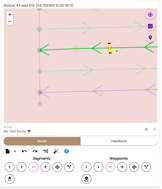
Remember: It is always possible to undo/redo changes to the route with the 
 buttons.
Make Adjustments to an Existing Route
Start by selecting a route to change in the left dropdown menu under the map.
- The direction of the route and segments
1.1. Move through the segments and waypoints by pressing the left and right arrows.
1.2. The direction of the segments and waypoints can be reversed with the button. Reversing the waypoints will make the robot move the opposite direction down the row. Reversing the segments will make the robot start from the opposite side of the field.
 - Adding a new segment/waypoint after the current selection
2.1. The current waypoint (where the robot is heading next) is shown as a yellow circle.
2.2. The current selected segment is highlighted as a ticker line.
2.3. Move the robot to the position where the new waypoint should be, or use the button located at the top right on the map to freely place the waypoint on the map.
2.4. Add a new segment or waypoint after the current selected segment/waypoint by pressing the(+)buttons. They are always added after the current selection. Use the arrows to see if it was added correctly. - Shifting segments and waypoints
3.1. Shift the current selected segment or waypoint by pressing the button.
3.2. The direction it is shifted depends on the direction of the segment.
Headlands
Headlands segments are created and edited the same way as regular segments.
- Make sure to select
"Headland"below the route selection drop-down. - Create a segment following the headland of the field. This is where the robot will turn.
- Press the
 button to extend route segments to start/end at the headland as shown in the image below.
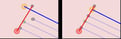
Note: Headlands are only used for adjusting the route. The robot will not automatically turn when crossing the headlands, so make sure to fit the route-segments to the headland.
Create a Route from AB line
If the field rows are perfectly parallel, the entire route can be generated by just the first row and a set of headlands circumscribing the field.
- Create a new route and add the first row segment following the steps 2-5 for creating a route.
- Add headlands along the entire field following the steps 1-3 for creating a headland.
- Press the
 button and input the width between each row bed. The route should be filled with segments as shown in the image below.
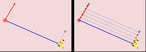
Icon Explanation
| Icon | Explanation |
|---|---|
|
Create a new route file |
|
Undo last changes to the route |
|
Redo last changes to the route |
|
Fit route segments to headlands |
|
Generate route from AB line and headlands |
|
Shift segments or waypoints to a direction |
|
Reverse segments or waypoints |
|
Turn on spray for one or all segments |
Video Instructions
- Set up a Route
- Create a Route
- Make Adjustments to an Existing Route
- Headlands
- Create a Route from AB line