
INDEX
The AX-1 uses cameras and artificial intelligence to recognize weeds directly in the field and treat them individually.
As the machine moves through the crop, it continuously scans the ground and identifies plants in real time. When a weed is detected, the system creates a spray map instantly and releases a small, targeted droplet of herbicide directly onto that plant. This allows treatment to be precise, reducing the amount of herbicide used and avoiding unnecessary application.

Figure 1 Photo took by a spray module.

Figure 2 Weeds (red) and crop (green) detected by the AI model.
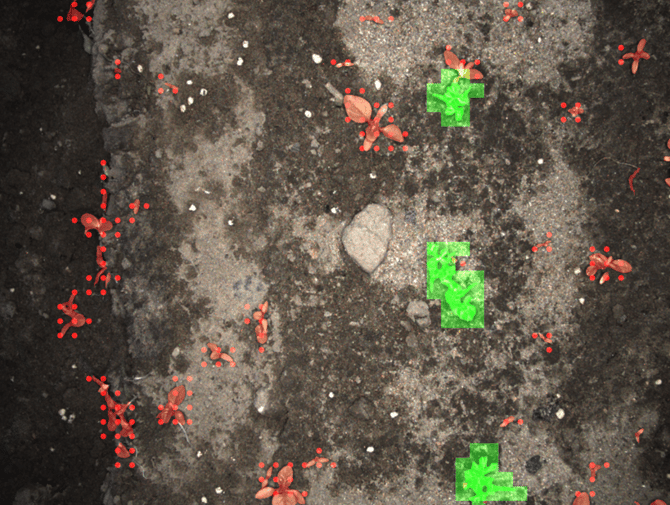
Figure 3 Spray map decision. One droplet will be released on every single red dot.
Setting the Machine for Your Crop
Before starting a treatment, it’s important to make sure the machine is set up correctly.
You need to select the right crop and choose the appropriate aggressiveness level. All of these settings are managed through the Kilter Remote app [LINK], where you can also define safety zones and adjust how the machine behaves.
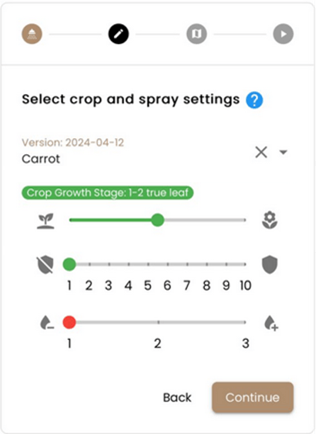
Figure 4 Kilter Remote. Crop and Spray settings.
The aggressiveness of the system depends mainly on the growth stage of your crop, using the BBCH scale as a reference. When plants are small, it is more difficult for the system to distinguish between crops and weeds, so a more cautious (less aggressive) setting is recommended. As the crop grows and becomes easier to recognize, the system can safely operate more aggressively.
If you are unsure which level to choose, it is always safer to select the setting for smaller plants. This reduces the risk of damaging the crop.
During Operation
While you are working, the system continuously scans the field and treats weeds automatically.
At the same time, it is important that you actively monitor the crop, especially during the first passes and early in the season. Monitoring can be done directly in the field or remotely through the Kilter Remote app. The AX-1 is a powerful tool, but it is not a “set and forget” system. Field conditions can vary, and performance depends on factors such as crop stage, light, and soil conditions.
You should regularly check that weeds are being treated correctly and that crop plants are not being affected. If something does not look right, you should stop and adjust the settings if needed.
Kilter also monitors performance in the background and will inform you if issues are detected. However, your observation in the field remains essential to ensure the best results.
Continuous Improvement
The AI models improve over time as Kilter gathers more data from real field conditions.
Images collected during operation are used to refine the system, helping it adapt better to your specific crops, soil, and environment. Updates to the system are made regularly. When performance needs improvement, updates are released more frequently. Once the system is performing well and consistently, updates become less frequent.
The system’s effectiveness can vary depending on several factors, including the type of crop, its growth stage, and field conditions such as soil and light. These variations are normal and are considered as the system continues to improve. Therefore, the speed of improvement can vary depending on the crop, as some are naturally more difficult to distinguish than others.
Crop supported by AX-1
The AX-1 must only be used in crops for which a classifier has been developed. Using the machine in unsupported crops or outside its intended use can lead to poor performance and may result in damage to the crop or the machine. An updated list of supported crops is available on the Kilter website.
-
-
Supported field profiles
-
The AX-1 performs best in flat fields and raised beds and should not be used in ridge systems or in fields with highly uneven profiles (see Figure 1). Field shape directly determines whether the robot can drive on safe, repeatable wheel tracks and reach weeds without the crop or bed edges blocking the view, so bed width must match the machine’s track and boom configuration, check the centre-to-centre (C–C) wheel spacing and make sure the boom and spray modules line up inside the bed. Uniform bed height, straight and consistent bed edges, and even spacing along each row are important because sudden changes in bed height or side slopes create blind spots, unstable wheel contact and a much higher risk of the robot getting stuck. Headlands must be open and crop-free so the AX-1 has room to turn at the end of each row, and both tracks and headlands should be clean and level, with no deep ruts, obstacles or encroaching vegetation. While the mobile app allows operators to trim or extend recorded rows, or to edit headland areas in the field, these software fixes do not replace good physical preparation: whenever possible prepare beds so their width, shape and surface are consistent for the full length of the run.
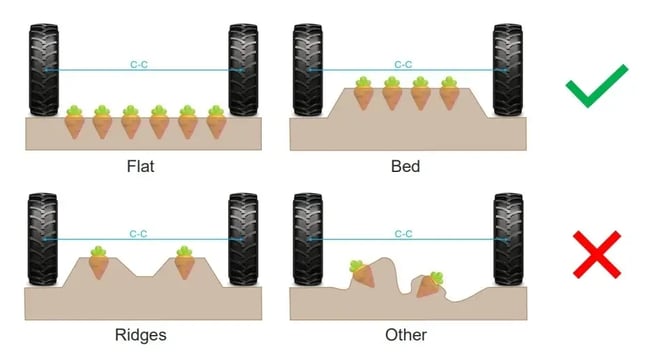 Figure 5 Supported and not supported field profiles.
-
-
Use of herbicides and adjuvants with AX-1
-
The AX-1 applies very small, targeted droplets of herbicide directly onto weeds. Because of this, the choice of herbicide mix is important to ensure consistent performance and avoid issues in the system.
Not all products behave the same when used in a single-droplet system, so care must be taken when selecting and preparing mixtures.
Choosing the Right Formulation
As a general rule, liquid formulations that dissolve fully in water work best.
Water-soluble products and emulsions are typically suitable, as they mix well and remain stable over time. Many of these also contain built-in adjuvants that help droplets form correctly.
Formulations that contain solid particles, such as suspensions or dry products, are more likely to cause problems. These can settle, form deposits, or clog parts of the system, especially when left without agitation. Regardless of the product, the mixture should remain uniform and stable over time. Herbicide should not be left in the system for extended periods without cleaning, as this can lead to build up or blockages.
Water Quality Matters
The quality of the water used for mixing has a direct impact on performance. Water that contains high levels of minerals (hard water) can affect how mixtures behave and may lead to residues forming in the system. Water should ideally be low in hardness and free of iron or metallic particles, as these can build up inside the machine. It is also important to check pH, as this can influence the stability of the mixture. Keep in mind that pH and water hardness are different and both should be considered.
Environmental Conditions
Even though the AX-1 is designed for very precise application, field conditions still matter. Temperature is an important variable to consider, as some mixtures may become unstable if conditions are too hot or too cold, especially if the machine is left standing with product in the tank.
Checking a New Mixture
Whenever you use a new herbicide mix, or when operating in a new location, it is important to confirm that the mixture behaves correctly. A simple jar test can be used to check if the mixture stays stable over time. The mixture should remain uniform and easy to re-mix after sitting. If it separates, forms sediment, or creates gels or crystals that do not dissolve again, it should not be used. It is also important to verify how the mixture behaves in the machine, including droplet consistency and flow.
Use the steps below to confirm a mix is compatible with the AX-1 system and performs as intended. If any step fails, do not use the mix.
- Step 1: Pre-check formulation and water quality Confirm the formulation type and whether it is likely to perform well. Assess water quality for the available sources (hardness, pH, temperature). If water quality is uncertain or variable, consider using demineralised water.
- Step 2: Overnight jar test Prepare a jar test at the intended ratios and leave it overnight. AX-1 can run 24/7, so the mixture must remain stable even when sitting for several hours without circulation. If separation, sediment, gelling, or crystals form and do not re-mix easily, reject the mix.
- Step 3: Short tank check Mix a small batch and put it in the tank. Run "Prepare nozzles" a few times to confirm stable flow and no blockage or settling.
- Step 4: Droplet volume and distribution test Verify droplet volume and distribution. Check the coefficient of variation (CoV) and confirm areal dosage. Adjust the spray unit if needed.
- Step 5: Spot-check on weeds Run over a small area with visible weeds. Confirm droplet placement and hit rate. This is easiest to observe on dry soil.
- Step 6: Secondary droplet check (especially for systemics) Place water-sensitive paper under weeds and spray. Look for secondary droplets and estimate how many are present. The image below shows typical behaviour. In general, the fewer secondary droplets, the better.
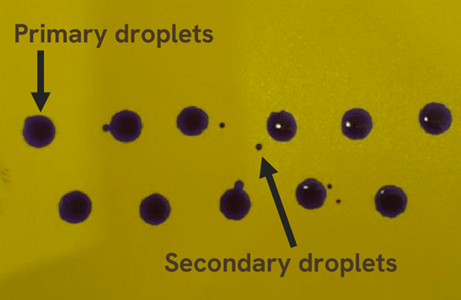 Figure 6 Droplets typical behaviour. Few secondary droplets.
Droplet quality and accuracy
Because AX-1 works with single droplets, the physical properties of the spray mixture are critical. The way droplets form depends largely on surface tension. If surface tension is too high, droplets may not form consistently. If it is too low, small secondary droplets may form, reducing precision and increasing the risk of unintended contact with crop plants. This is especially important when using systemic herbicides, where even small amounts reaching the crop can cause damage.
 Figure 7 Increased number of secondary droplets show unusual behaviour and it’s often related to cleaning issues leading to clogging of the system.
Proper cleaning of the AX-1 is essential to maintain performance and avoid buildup inside the system. Residues from herbicides, water quality, and environmental conditions can lead to deposits, clogging, or reduced spray accuracy if the machine is not cleaned regularly.
As a general rule:
Do not leave herbicide mixtures in the system for extended periods.
Clean the system when changing products or after periods of inactivity.
Pay extra attention when working with mixtures that are known to leave residues.
Kilter has developed detailed cleaning guidelines that explain when and how the system should be cleaned. These guidelines should always be followed to ensure safe operation and long-term reliability of the machine. [LINK]
-
-
Autonomy
-
The AX-1 follows predefined driving paths to navigate the field. The accuracy of these paths is essential to ensure correct operation and to avoid damage to crops or soil. For this reason, the quality of the GPS data used to define the route has a direct impact on performance.
If the path used by the robot does not align with the real tracks in the field, the machine may miss rows or drive outside the intended lanes, this can lead to untreated areas, reduced efficiency, or potential damage to crops and the field. To achieve the best results, it is recommended to use GPS logs from the tractor operation that most accurately represents the final driving lanes. This should include the position of the implement behind the tractor, as this defines the true working path.
It is important that the tractor and implement are correctly configured when recording these logs.
GPS Accuracy Requirements
AX-1 requires RTK-level GPS accuracy via NTRIP correction. All other type of GPS system are not supported by the robot.
Using AB Lines
Even if it’s not preferable, driving lanes can also be generated from AB lines. This method works reasonably well in flat fields with straight, uniform passes generated from a single AB line.
However, in fields with slope or uneven terrain, differences in how the tractor and the AX-1 compensate for lateral movement will result in misalignment. In such cases, AB lines are not accurately enough to represent the real driving lanes, and using recorded GPS logs is the correct approach.
Creating and Adjusting a Route
Once the driving data is available, a route can be created using the Kilter platform. Routes are managed through KF, where you can define and prepare the paths that the AX-1 will follow in the field. Routes can also be adjusted directly through the Kilter Remote app, allowing you to make corrections if needed once you are in the field.
For step-by-step instructions on how to create a route, refer to: Route Planner guide.
Monitoring and Responsibility
Even when using predefined routes, it is important to ensure that the robot is following the intended path correctly. Before starting full operation, you should verify that the route aligns with the actual field layout and that the machine is correctly positioned on the driving lanes. During operation, continue to monitor performance, especially when working in new fields or when using newly generated routes.
If the robot appears to be off track, refer to the dedicated troubleshooting guide.
-
Getting started
You have now gone through the basic knowledge needed to drive the robot safely. It's time to actively drive!
This chapter walks you through everything you need to do, from creating an account to making your first manual drive, in one place.
-
-
Set up your account and robot
-
Before you can drive the AX-1, three things need to be in place: the Kilter Remote app, a Kilter user account, and your robot linked to that account.
Download Kilter Remote
Download the Kilter Remote app to your phone or tablet:
Create your Kilter user
You need a Kilter account to use the machine and plan its operations. You can create one in two ways:
- In Kilter Farm: Sign up directly at farm.kiltersystems.com.
- In Kilter Remote: Open the app, tap Log In, then Sign Up, and create your account using your email address. Use a unique and secure password.
Either method works, choose whichever is most convenient.
Claim your AX-1
To access and control your AX-1, it must be linked to your Kilter user account. To do this you need the machine's frame number, which is encoded in the QR code on the front of the machine. Using a phone is recommended so you can scan the QR code directly.
You can claim the robot in two ways:
- In Kilter Farm: Go to Equipment → Add Equipment, then enter the frame number in the format “xxxxxxxx-xxxx-xxxx-xxxx-xxxxxxxxxxxx”.
- In Kilter Remote: Tap Add Equipment. You will be forwarded to Kilter Farm, where you can scan the machine's QR code using the forward-facing camera on your device.
-
-
Power on the AX-1
-
Make sure the machine is prepared, then start it. The AX-1 can be started in two ways depending on whether you will use the generator. Without the generator the operating time is very limited, so weed spraying should only be done with the generator running.
Start with generator operation
Before starting, make sure:
- The generator is filled with gasoline.
- The choke is not left on during operation, running the generator with the choke on can cause permanent damage and irregular operation.
Startup procedure:
- Make sure the power cable to the control unit is connected to the generator. Without this connection, the batteries will not charge.
- Turn the generator switch counterclockwise so it points diagonally upwards.
- Turn the choke on.
- Pull firmly on the generator's starter cord until it starts.
- Turn the choke off.
- Turn the red main switch for the system clockwise to the "On" position (pointing right).
- After about 1 minute, the AX-1 can be connected to your phone or tablet using Kilter Remote.
Start with battery operation
The AX-1 can also run on its batteries alone, the generator does not need to be started.
- Turn the main switch clockwise to the "On" position (pointing right).
- Open Kilter Remote and select the machine. The robot will be available after about 1 minute.
-
-
Set NTRIP username and password
-
The AX-1 needs GNSS correction data to navigate in the field. Providing this is the responsibility of the user. NTRIP credentials and mount point are configured in Kilter Remote.
While connected to the robot:
- Go to the Settings tab.
- Open the GNSS drop-down.
- Tap NTRIP Credentials.
- Enter the Username, Password, and URL.
The URL has the format [link]:[port]/[MountPoint]. If the credentials are correct, the Fix Status will change to RTK fix or RTK float.
Example:
- URL: "no.nrtk.eu:9301/MSN_iMax"
- Username: "NtripUsername"
- Password: "Password"
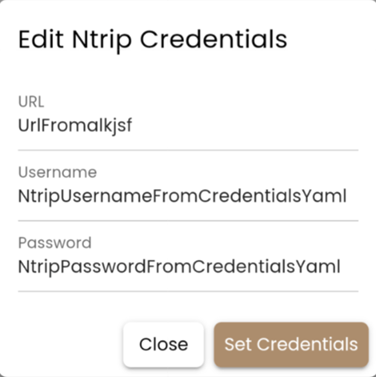
Figure 8 NTRIP example.
If you have problems, contact your NTRIP provider.
-
-
Make your first manual drive
-
With the robot powered on and standing next to you:
- Open Kilter Remote.
- Select your robot.
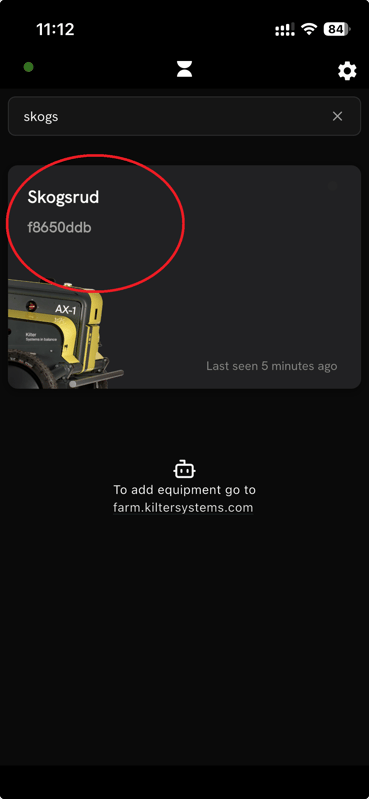
Figure 8 Select your robot on Kilter Remote.
- Tap Connect. And wait to for the phone to establish connection.

Figure 9 Press Connect to connect your phone to your AX-1.
 Figure 10 Wait for connection.
Figure 11 You are connected. - This brings you to the Home page of Kilter Remote.
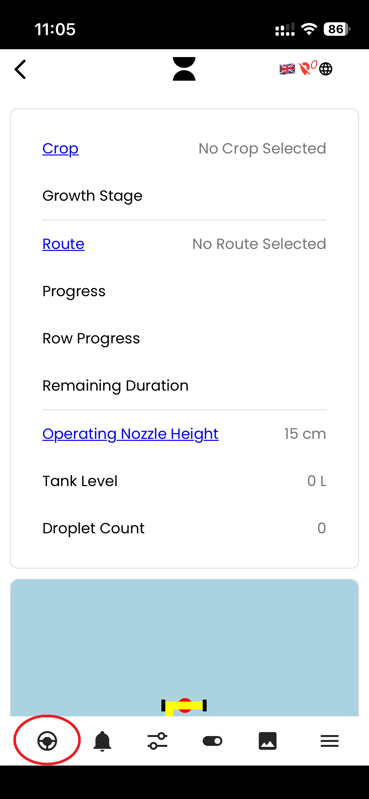 Figure 12 Kilter Remote Home Page.
 - From the Home page, select the wheel in the sub menu.
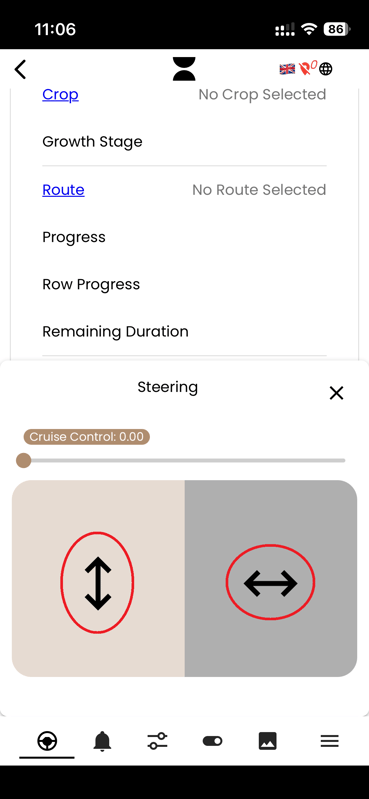
Figure 13 Driving options.
- Place a thumb in each of the areas with the arrows: drive back and forth with one thumb and turn with the other.
You're now driving the AX-1 manually. Enjoy the stroll!