
The AX-1 is controlled exclusively through the Kilter Remote app on a mobile device or tablet, which acts as the machine's control unit. Through the app, you can control the AX-1, monitor operations, manage driving routes, and configure spray settings. The Kilter Remote app is required to operate the machine — there is no built-in control panel or alternative control method.
Connection
The AX-1 has an integrated local Wi-Fi network available for connection when the machine's main power switch is turned on.
Note: In some cases, it may take up to 2 minutes after turning on the main power switch before the robot becomes available for connection.
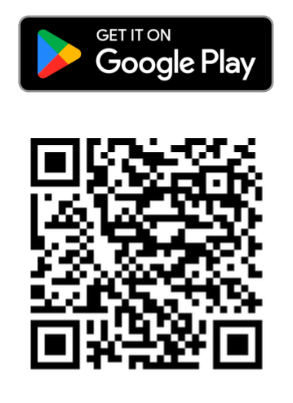
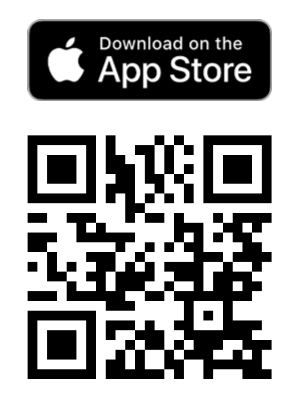
To use the application, you need a mobile device or tablet with Kilter Remote installed. The app can be downloaded from the App Store (for Apple users) or Google Play (for Android users). See the QR codes below for download links. Wi-Fi must be enabled on your device during the connection process.
Registering a User in Kilter Remote
-
Account Creation:
When you purchase the AX-1, a user account is automatically created and the login credentials are sent to your email address. To add more user accounts, contact your Kilter customer representative. Use those credentials to log in to Kilter Remote.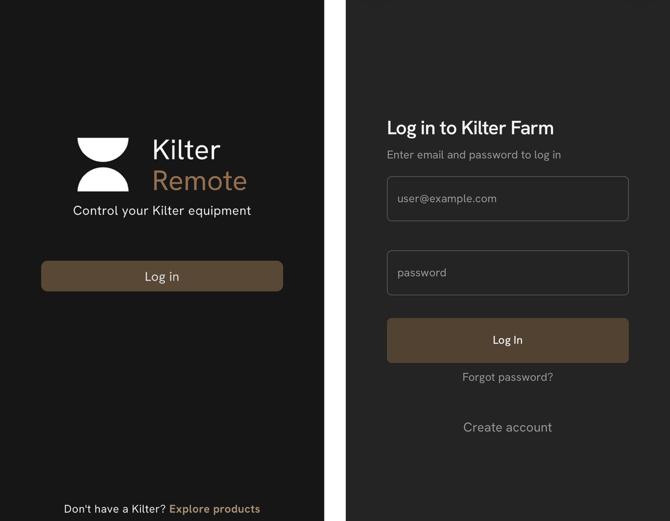
-
Connecting to AX-1:
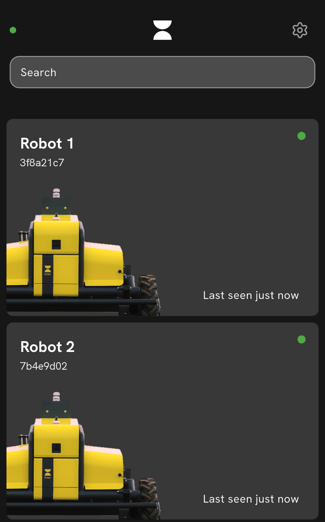
After logging in, you see a list of machines linked to your account. Select your AX-1, then tap Connect to join via the AX-1's Wi-Fi network. Click “Connect”.Note: Allow approximately 2 minutes after powering on the AX-1 before attempting to connect. Once connected, your device functions as the machine's control unit.
Having trouble? See common questions about Connectivity and Routes in our FAQ.