In order to make a route we have to first create a field in Kilter Farm. Click "Create Field".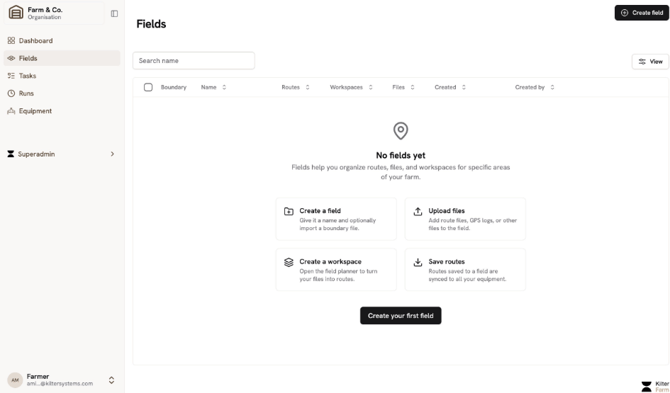
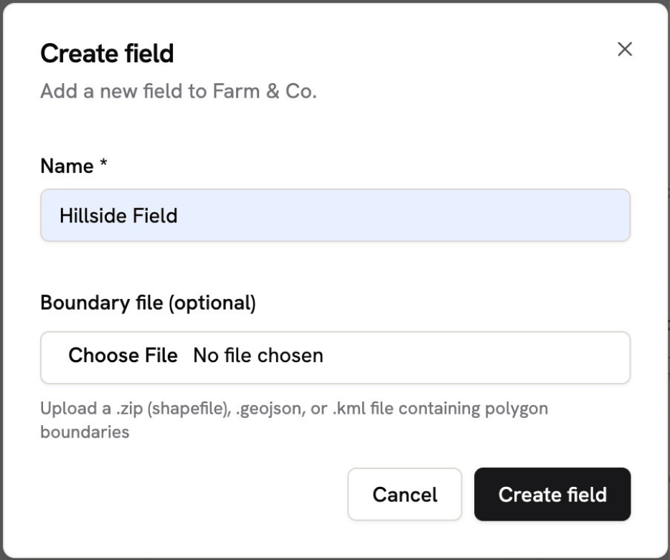
Add a name to the field and include a boundary file if this is available.
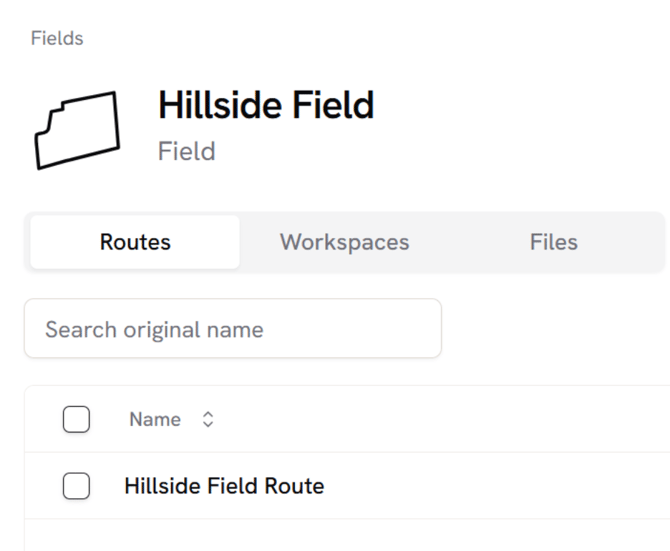
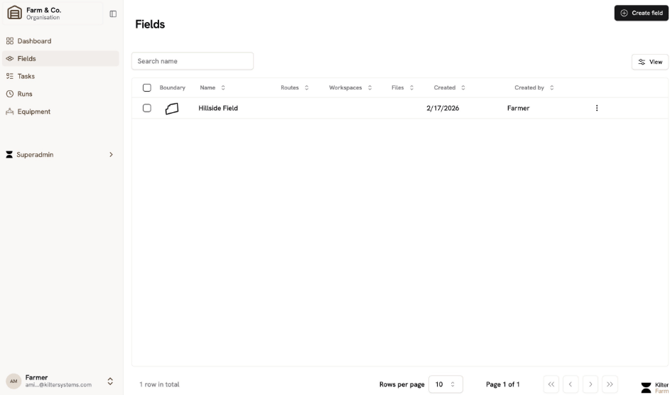
Click on the field
Then click ‘New Workspace’. This will open up a dialog box where you should upload the files you want to include in the workspace.
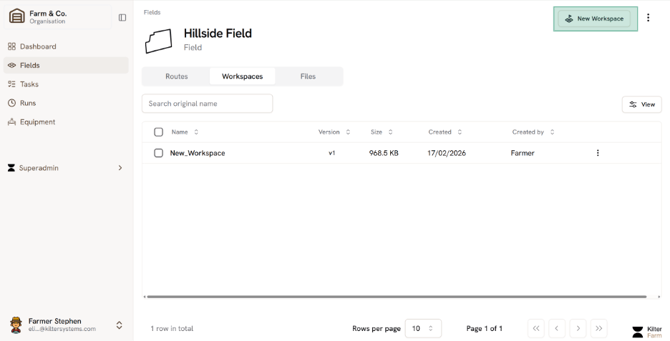
Upload your workdata
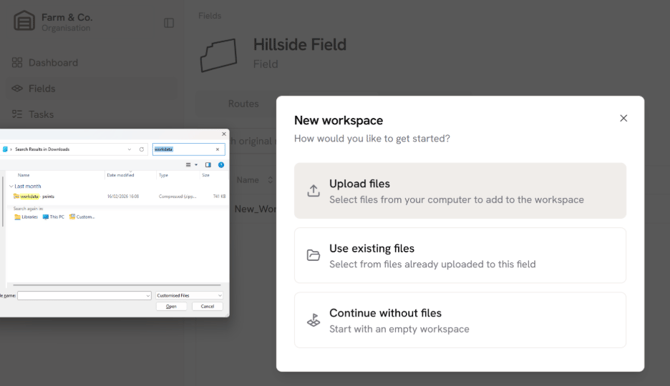
After uploading the file the workspace should automatically open in a new tab. Go through the introduction. If you intend to make routes yourself, we recommend choosing the full tour of the workspace. If you just want Kilter to make the route for you, select ‘Help me build my route’.
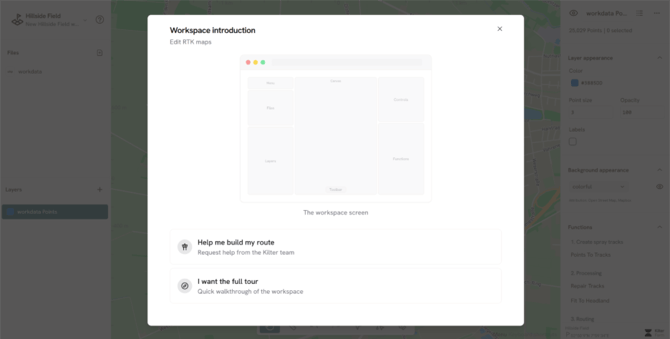
At the end you can choose to not show this introduction again. It is always available under the question mark on the top left if you want to see it again.
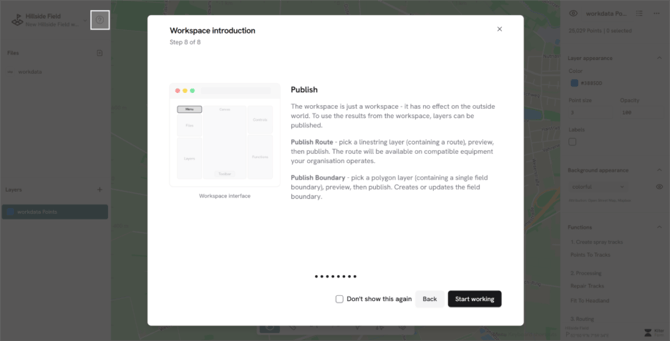
Workspace
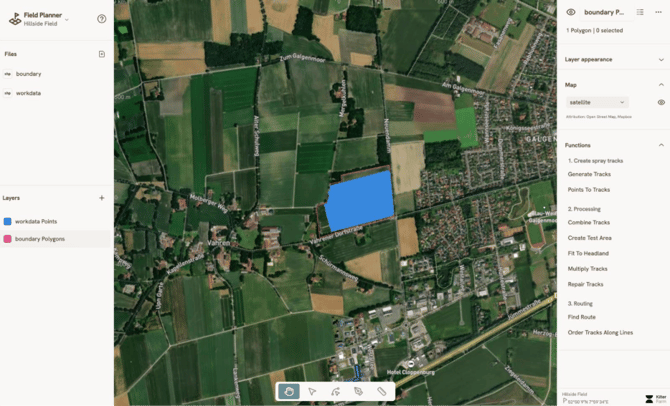
Workspace Overview
We will go through some common sections and explain what they do.
Layers
Think of layers as different transparent sheets that sit on top of a map. Each layer shows a different kind of information:
- Point layer: like recorded GPS points from the tractor
- LineString layer: like tracks for the robot to drive on
- Polygon layer: like boundaries
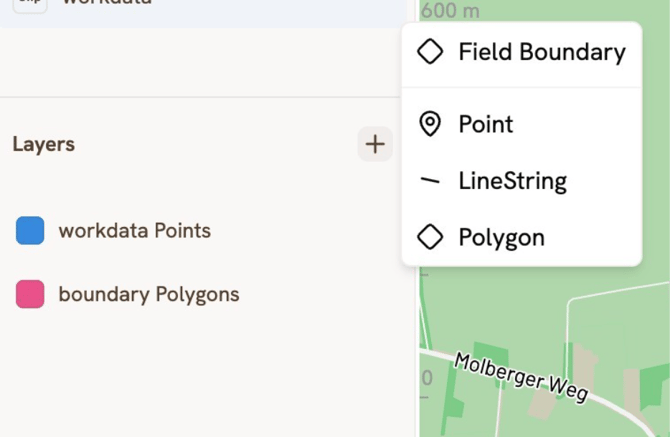
Active Layer
Clicking on any layer can makes it active. Hovering on each layer presents two most commonly used options:
- Zoom to fit zooms the map onto the layer
- Hide hides/shows a layer
Tip: on a layer to see additional options.
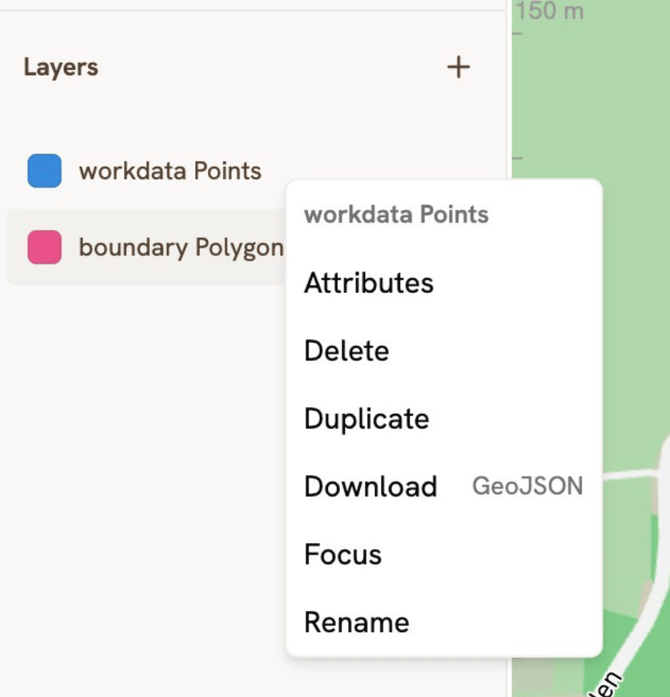
Toolbar

You can hover over each tool to know what theyʼre called. Hand tool helps in panning and moving around the map
Measure tool can be used to measure distance between two or more points on the map. Click to start creating points. When finished, double click on the final point to end drawing.
Undo and Redo helps undo and redo changes.
Undo shortcut: CTRL + Z
Redo shortcut: CTRL + Y
Select tool helps in selecting different geometries of an active layer.
Edit Vertices helps in moving/deleting a vertex. Hold the ALT key when clicking on a point to delete a vertex.
Add feature tool adds a feature (Point/LineString/Polygon) on the active layer. Double click on the final point to finish the drawing, or press the ESC key to cancel drawing.
Functions
Several functions exist to process layers. The output of each function will result in a new layer. If the input to the functions is erroneous, an error layer will appear in the layers panel. Then we can see itʼs attributes to see the errors.
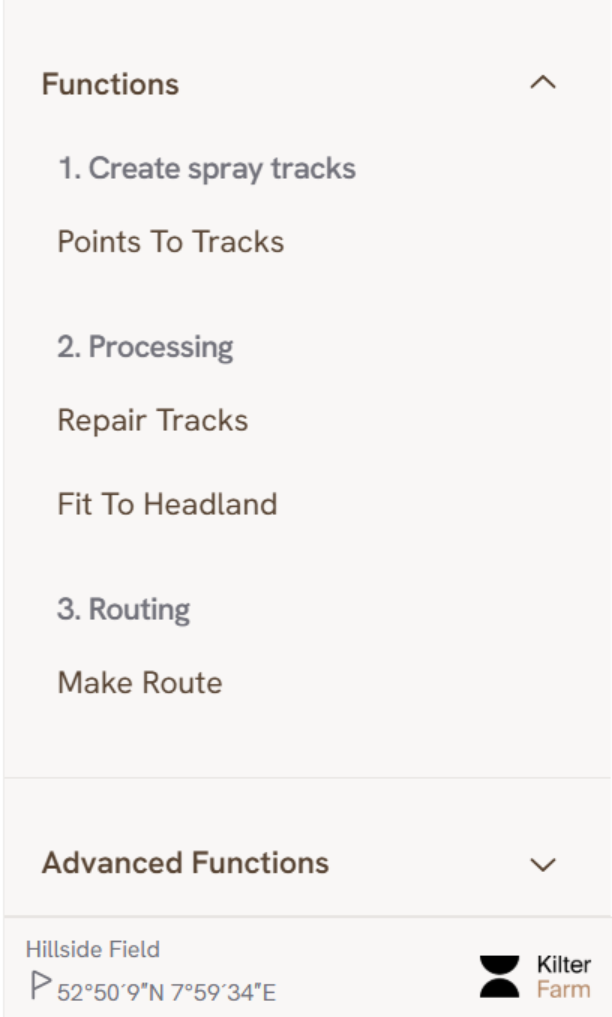
Generating a Route
Letʼs begin generating the route. We already have workdata and boundary in our layer. Letʼs start by choosing the function which converts the points into tracks.
Converting data into a Route
Points to Tracks
Click on “Points to Tracks” and select the points layer in the dropdown.
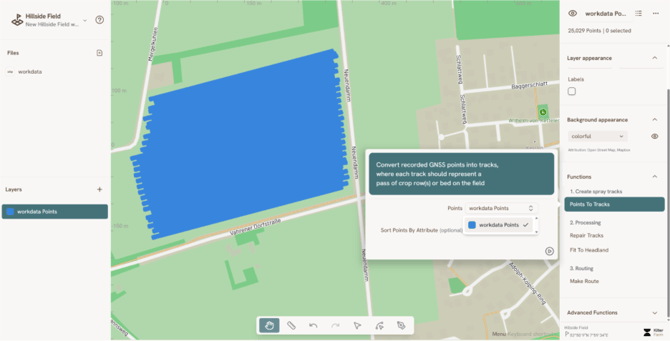
When clicked on the “play” button, the points will be converted to raw tracks and a new layer will appear in the Layers panel.
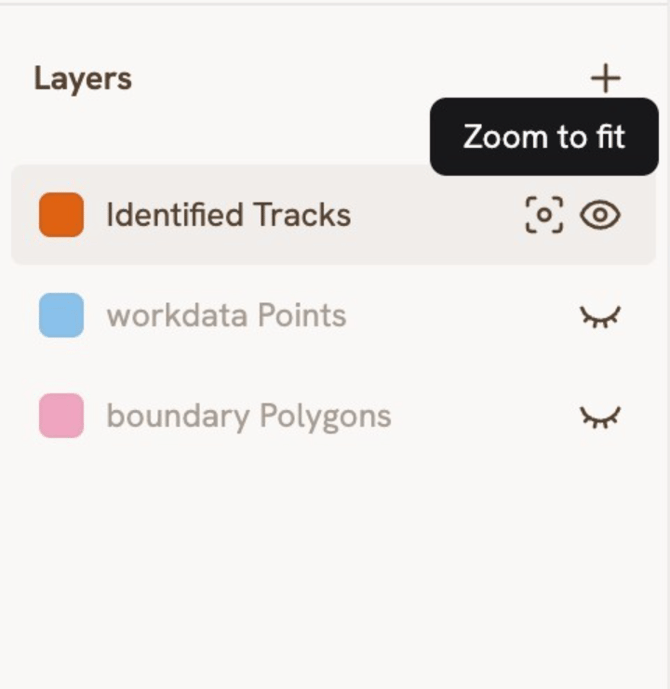
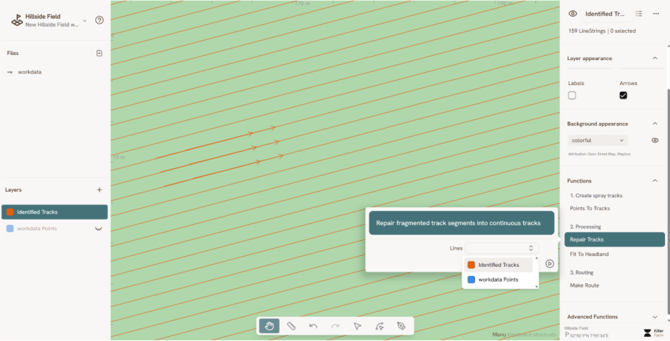
Raw tracks might have some errors or duplicates. Run “Repair Tracks” on the identified tracks to clean them.
Creating headland
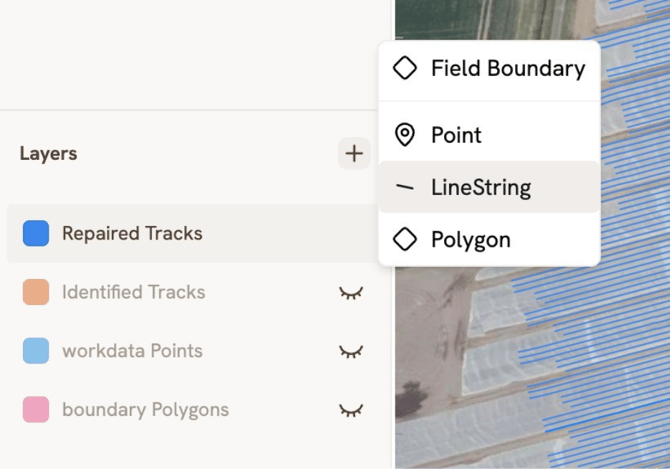
Now we must make a headland as a place where the robot will turn to spray on all tracks. Create a new “LineString” layer by clicking on the plus button in the Layers section.
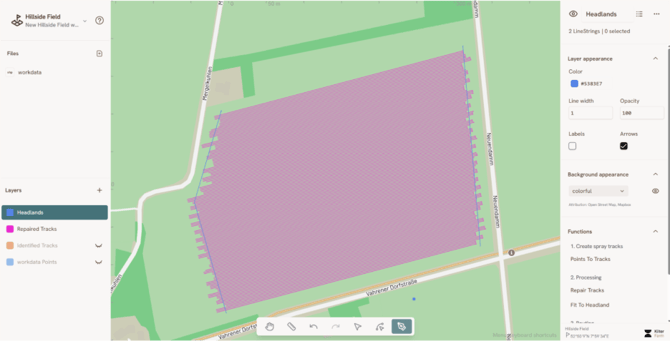
Fitting the tracks to the headland
After we create the headland, we must fit the repaired lines to extend them to the headlands.
Click on Fit to headland and select the layers.
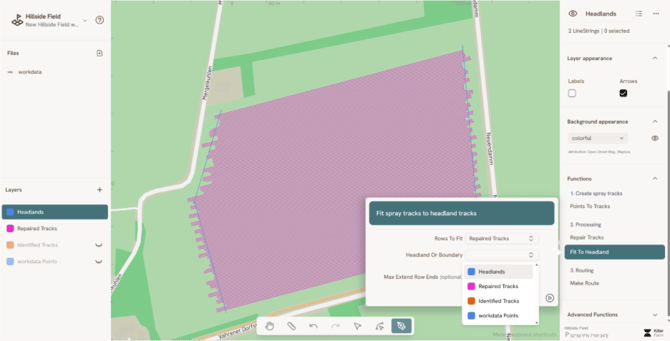
If there are errors, the layers panel will show which a layer with errors called “route validation error”. If there are no errors, a “Fitted Tracks” layer will appear in the layers panel. Here we got no errors.
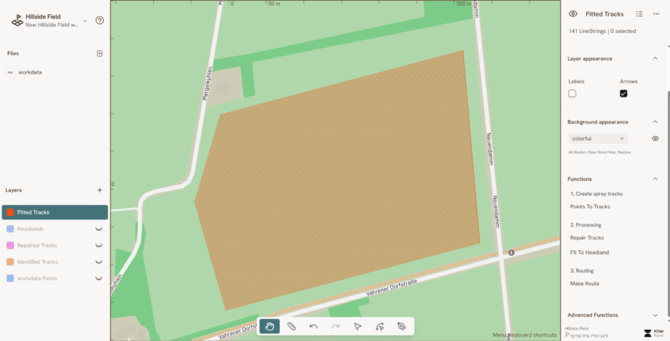
Generating Routes
To generate route, we must finally have a layer with a start point - usually a place where you would want the robot to start working.
Click on the plus button to create a Point layer and add a start point on the map.
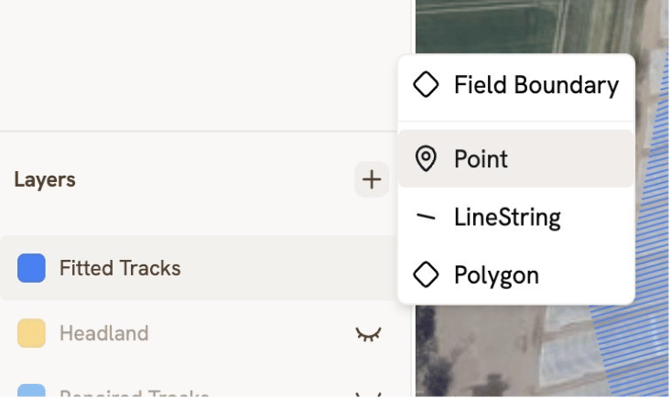
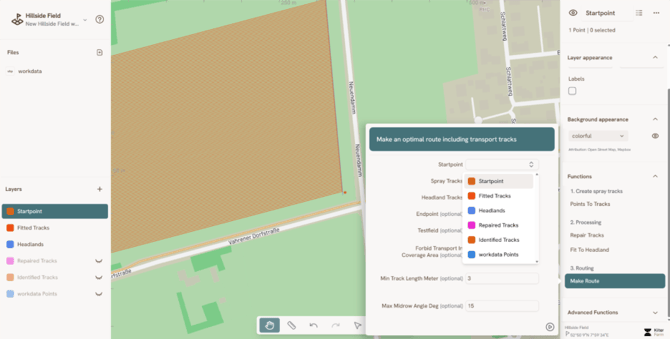
Make Route
Select Make Route and select the startpoint, spray tracks and headland track from the dropdown and click on the “play” button.
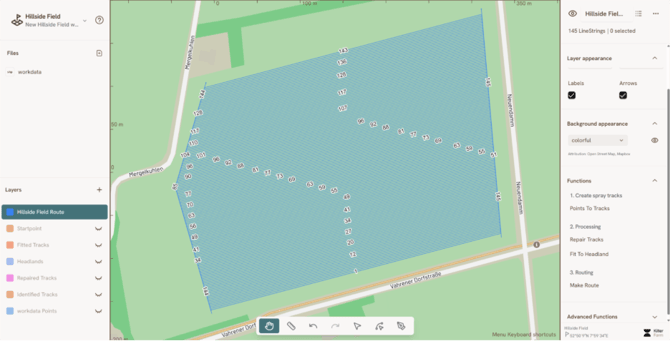
If all goes well, you should get a new Route layer. Pro tip: add labels to the layer in the right sidebar.
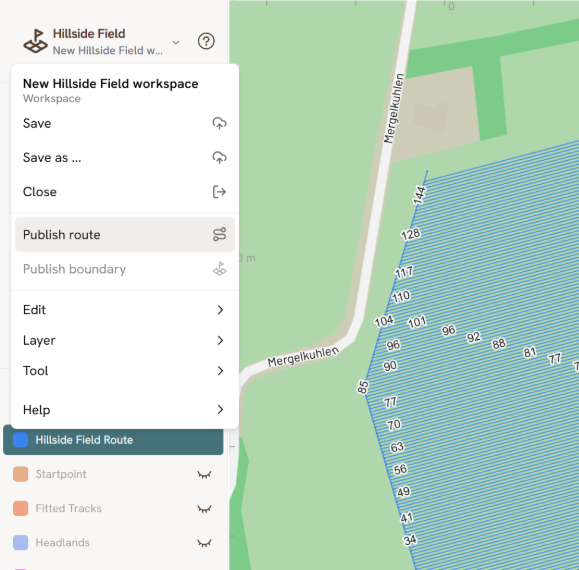
Publish Route
From the main menu, click on “Publish Route”
This will open a layer selector. Select the Route Layer
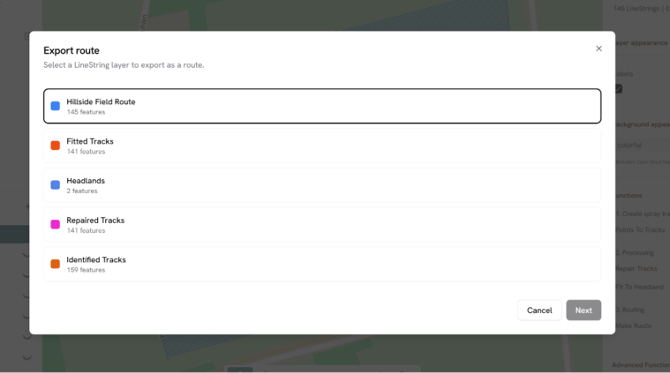
Inspect the route for errors
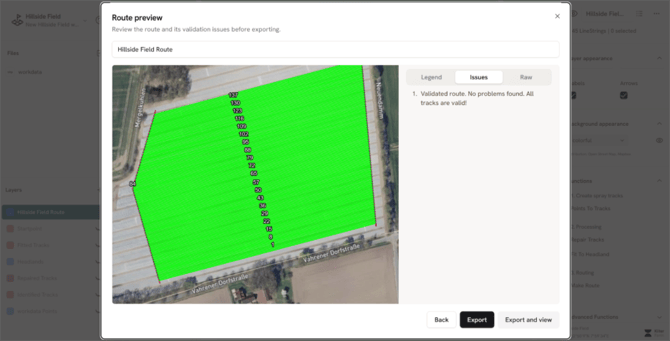
Then export or Export and view if you want to continue looking at it. The workspace will be saved automatically when exporting. I clicked export and view, which means I will go out of the workspace and view the route as it is under the Field.
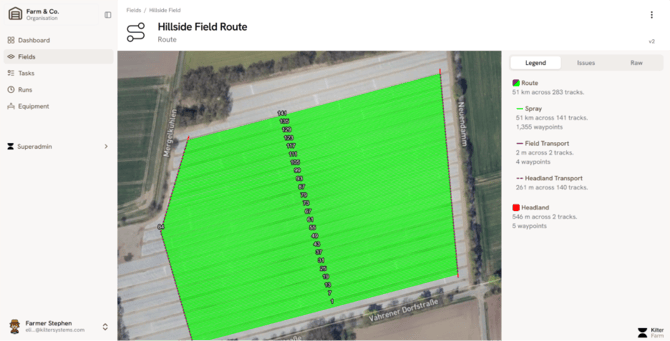
Notice the route has apparead in the ‘routes’ tab under the Field