
INDEX
1. Get help from Kilter
You can either have Kilter build the route for you from your uploaded files, or get help with specific details using our AI-chatbot or contacting Kilter Support.
1.a Delegate to Kilter
Use Delegate to Kilter when you want us to create the route for you, or when you need help with another issue in the workspace. Click the question mark > Delegate to Kilter.
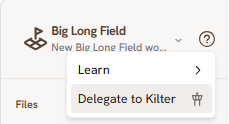
The help options in Kilter Farm.
Then the window below appears.
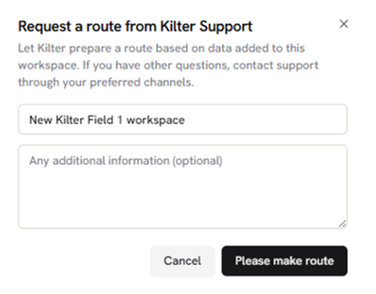
The Delegate to Kilter support request form.
Enter all relevant information in the Any additional information field. This could be the position of any obstacles in the field, the driving pattern, the driving order, and where the route should start and end. The more detail you give, the faster we can help.
Tip: Make sure all relevant files are uploaded to the field or workspace before you send a support request.
1.b Ask the AI chatbot
For quick questions, try the AI chatbot in the bottom-right corner of the Kilter Learn and Kilter websites. If it cannot help you, you can ask to be put through to a support agent.

The chatbot button in the bottom-right corner of the website.
1.c E-mail and phone
You are welcome to e-mail or call us for assistance as well.
Kilter Support is available 07:00–19:00 on weekdays and 09:00–14:00 on weekends and public holidays. You can reach us at:
support@kiltersystems.com
+47 960 06 820
2. Learn to build routes yourself
Clicking Learn instead of Delegate to Kilter opens a menu with three choices: revisit the workspace introduction, see an overview of the keyboard shortcuts, or open the online Route Guide on the Kilter Learn website.
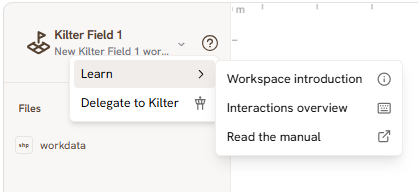
The Learn menu, with resources for making a route.
2.a Workspace introduction
The workspace introduction is the walkthrough you see when a new workspace opens. It covers the main areas of the workspace and how to get help building a route. You can revisit it as many times as you like.
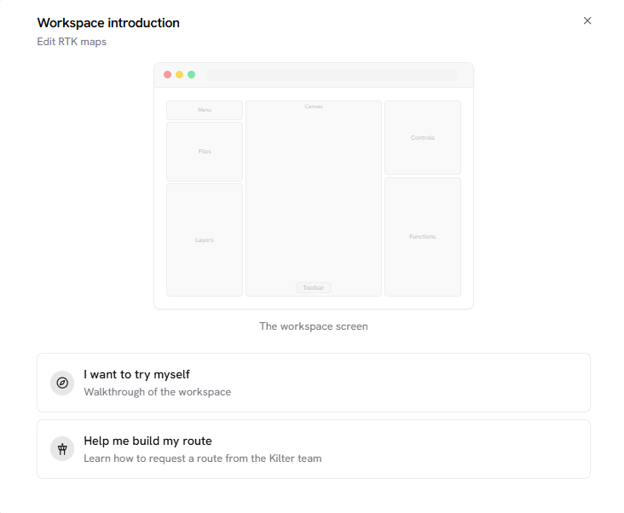
The workspace introduction walkthrough.
2.b Interactions overview
The interactions overview shows the keyboard shortcuts for the different parts of the workspace. Hover over or click a part of the workspace illustration to see the shortcuts that apply there.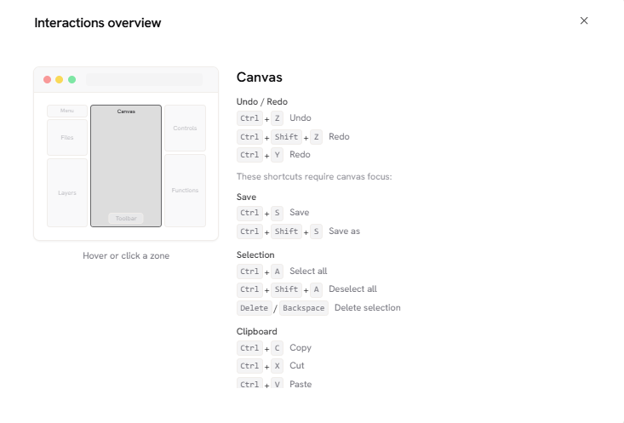
The interactions overview, showing keyboard shortcuts per area of the workspace.
2.c Route Guide
The Route Guide is an in-depth walkthrough of the basic method for creating a route, and it also covers much of the advanced functionality in the workspace. You can find it here.