INDEX
1. What is Kilter Farm?
Kilter Farm is a web portal where everyone in your organization can keep track of Kilter-related equipment and activities. Kilter Farm, along with Kilter Remote and the AX-1, completes the Kilter Ecosystem.
First, you need to create a Kilter user. Then you create an organization (see the next section), invite members, add equipment, and build routes for the AX-1. Inside Kilter Farm you'll find the workspace and tools to create your very first route.
A complete guide for making routes can be found here.
2. Create a new organization
In Kilter Farm, robots are linked to your user account through an organization. All routes and equipment are handled at the organization level, which means multiple users can access both the robots and the field data.
After creating your user account in Kilter Farm, you will be prompted to create an organization and invite members. This can also be done later as shown in the sections below.
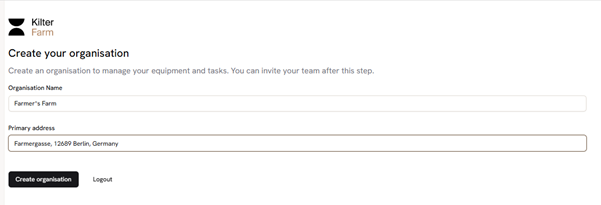
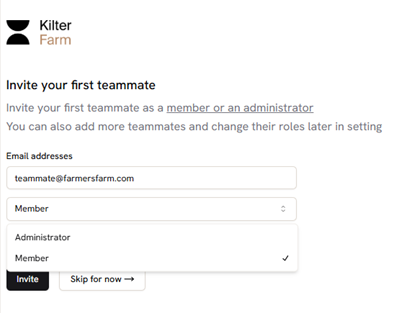
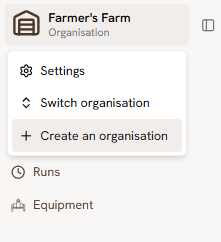
To create a new organization:
- Click the icon in the top-left corner of Kilter Farm and select Create an organization.
- Enter the organization's name and address.
- Click Create to confirm and save your new organization.
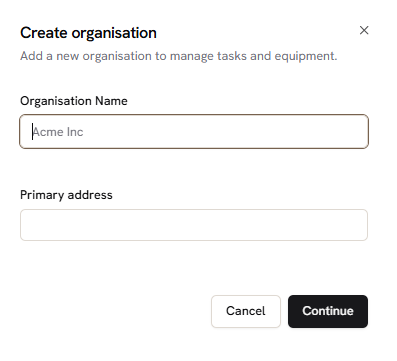
You're now ready to claim your equipment (see the next section) and create a route for running AX-1 in autonomous mode.
3. Claim an AX-1 to your farm
To access and control your AX-1, it must be linked to your Kilter user account. You can do this on farm.kiltersystems.com or through the Kilter Remote app.
To link the machine, you'll need its frame number. We recommend doing this on a phone, so you can scan the QR code located on the front of the machine.
On Kilter Farm:
- Go to Equipment and select Add Equipment.
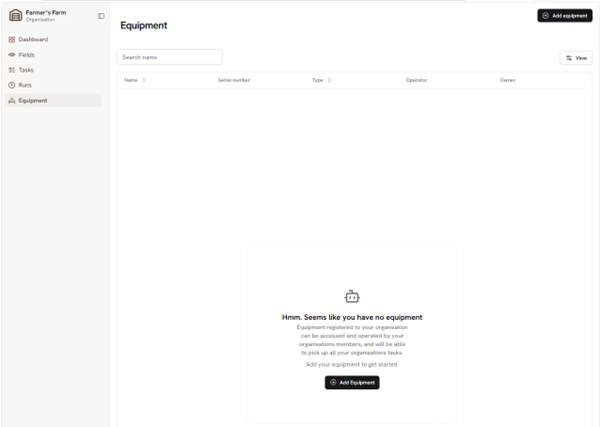
- In the dialog box, enter the frame number in the format xxxxxxxx-xxxx-xxxx-xxxx-xxxxxxxxxxxx.
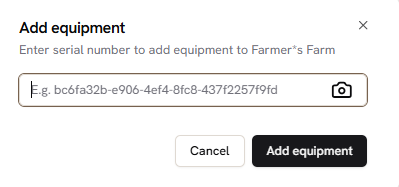
On Kilter Remote app:
- Select Add Equipment. You'll be forwarded to Kilter Farm.
- Scan the machine's QR code using the forward-facing camera on your device.
4. Invite members
As an Administrator in Kilter Farm, you can easily add new members to your organization. Here's how:
- Go to Settings in the left-hand navigation.
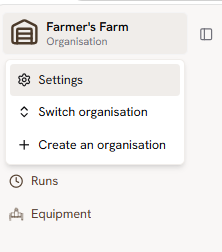
- Go to Members and click on Invite Member.
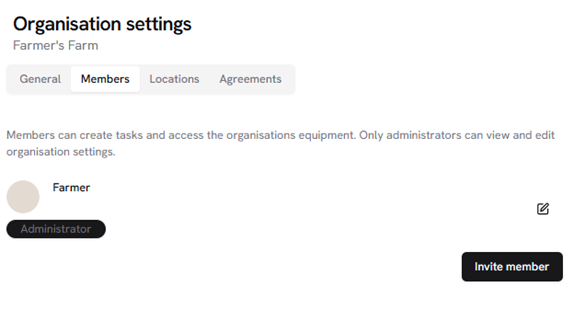
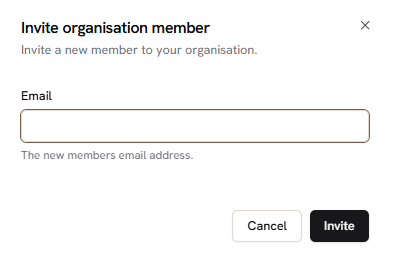
- Enter your colleague's email address and click on Invite. Your new team member will receive an invitation to join your Kilter Farm.
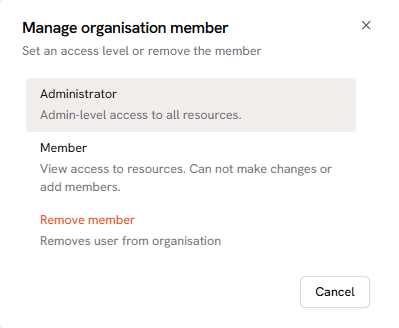
- After the invitation has been accepted you can choose whether to have them as an Administrator or a Member by clicking the button highlighted below. The difference is that members can create tasks and access the organisations equipment, while only administrators can view and edit organisation settings.
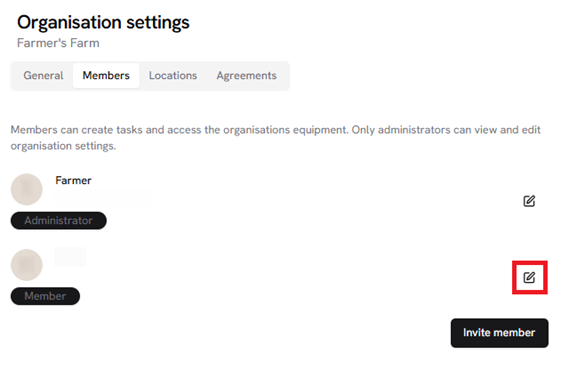
Members can create tasks and access the organization's equipment. Administrators can also view and edit organization settings.
Once accepted, your new team member will have access to your Kilter Farm organization.